
How to write a good GPT Image 2 prompt
A good GPT Image 2 prompt is not a pile of pretty adjectives. It is a short creative brief. The model needs to know what the image is for, what the main subject should be, how the scene is arranged, what style constraints matter, and what mistakes to avoid.
After reading recent GPT Image 2 prompt examples on X, one pattern kept showing up: the strongest prompts describe a job, not just a vibe. They tell the model whether it is making a poster, a study sheet, a product ad, a recipe infographic, a character portrait, or an edited reference photo. That single decision changes everything that follows.
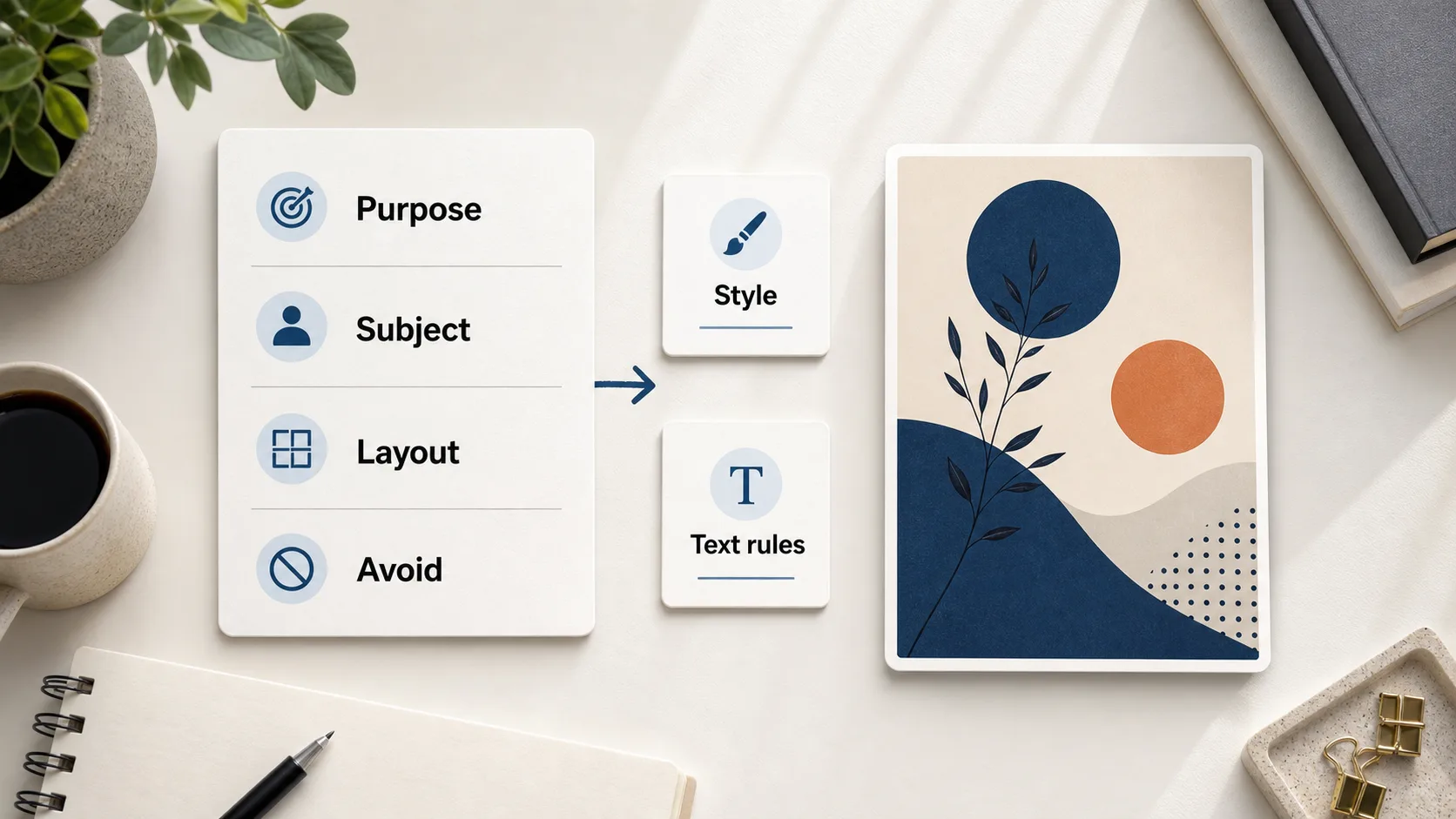
This guide gives you a practical framework for writing better GPT Image 2 prompt words, with examples you can adapt for your own images.
Start with the image's job
Before you describe color, lighting, or camera angle, decide what the image needs to do.
An educational infographic has a different job from a cinematic poster. A course cover has a different job from a photo edit. A product visual has a different job from a fantasy character scene. If you skip this part, the model fills in the missing context with familiar defaults.
OpenAI's own image guidance says the prompt should ground the model in a few key details: the purpose, subject, action, location, visual style, and any important framing or lighting constraints. That is a good baseline. For GPT Image 2, I would make "purpose" the first sentence.
Weak:
A beautiful image about calculus.
Better:
Create a clean educational study sheet that helps a high school student understand limits in calculus. The image should explain the concept visually, not just decorate the topic.
The second version tells the model what success looks like. It is not asking for "math aesthetics." It is asking for a teaching asset.
Use a simple prompt structure
You do not need a rigid template for every image, but a reliable structure helps. I use this order:
- Output type
- Main subject
- Scene or layout
- Style and medium
- Composition
- Lighting and color
- Text rules
- Things to avoid
Here is the same structure as a reusable prompt block:
Create a [output type] for [audience or use case].
The main subject is [subject], shown [action or state].
The layout should include [major sections, panels, or visual hierarchy].
Use [style, medium, camera, rendering, or design direction].
Compose it with [framing, aspect ratio, foreground/midground/background, spacing].
Use [lighting, color palette, material, texture].
Text should be [none / minimal / clear labels / exact headline].
Avoid [specific mistakes].
This is enough for most prompts. Add more detail only when the output needs it.
Describe layout before decoration
Many weak image prompts jump straight to mood: cinematic, vibrant, elegant, premium. Those words can help, but they do not define the image.
The better X examples were layout-aware. One cinematic character poster prompt described foreground, midground, and background separation. A study sheet prompt asked for formulas, graph intuition, worked examples, and a summary section. A recipe infographic prompt placed the finished dish as the hero visual, then arranged ingredients and steps around it.
That is the useful lesson: GPT Image 2 responds well when you explain where things go.
For a poster, layout might mean:
Use a 9:16 vertical poster layout. Put the character slightly off-center in the midground. Add depth with foreground particles and a background environment. Keep the title small and integrated into the scene rather than oversized.
For an infographic, layout might mean:
Use a vertical information card layout. Put the main visual at the top, then organize three explanation modules below it with icons, short labels, and a small summary strip at the bottom.
For a product image, layout might mean:
Place the product in the center as the hero object. Use supporting props around it, but keep them secondary. Leave clean space in the upper third for a short headline.
Layout gives the model a skeleton. Style gives it skin.
Write the subject like a director, not a keyword list
The subject line should answer three questions:
- What is the subject?
- What is it doing?
- What should remain consistent?
That last point matters when you upload a reference image. Several recent GPT Image 2 edit prompts on X focused on preserving the original subject, composition, and lighting before asking for a style transformation. That is the right order. Tell the model what must stay fixed before you ask for what should change.
Weak:
Turn this into a cartoon.
Better:
Analyze the uploaded image and preserve the original subject, pose, composition, and lighting. Add playful hand-drawn doodles that interact with the subject, then transform the image into a soft cartoon illustration while keeping the character recognizable.
That prompt gives the model a boundary. It can be creative inside the boundary, but it is less likely to drift away from the original photo.
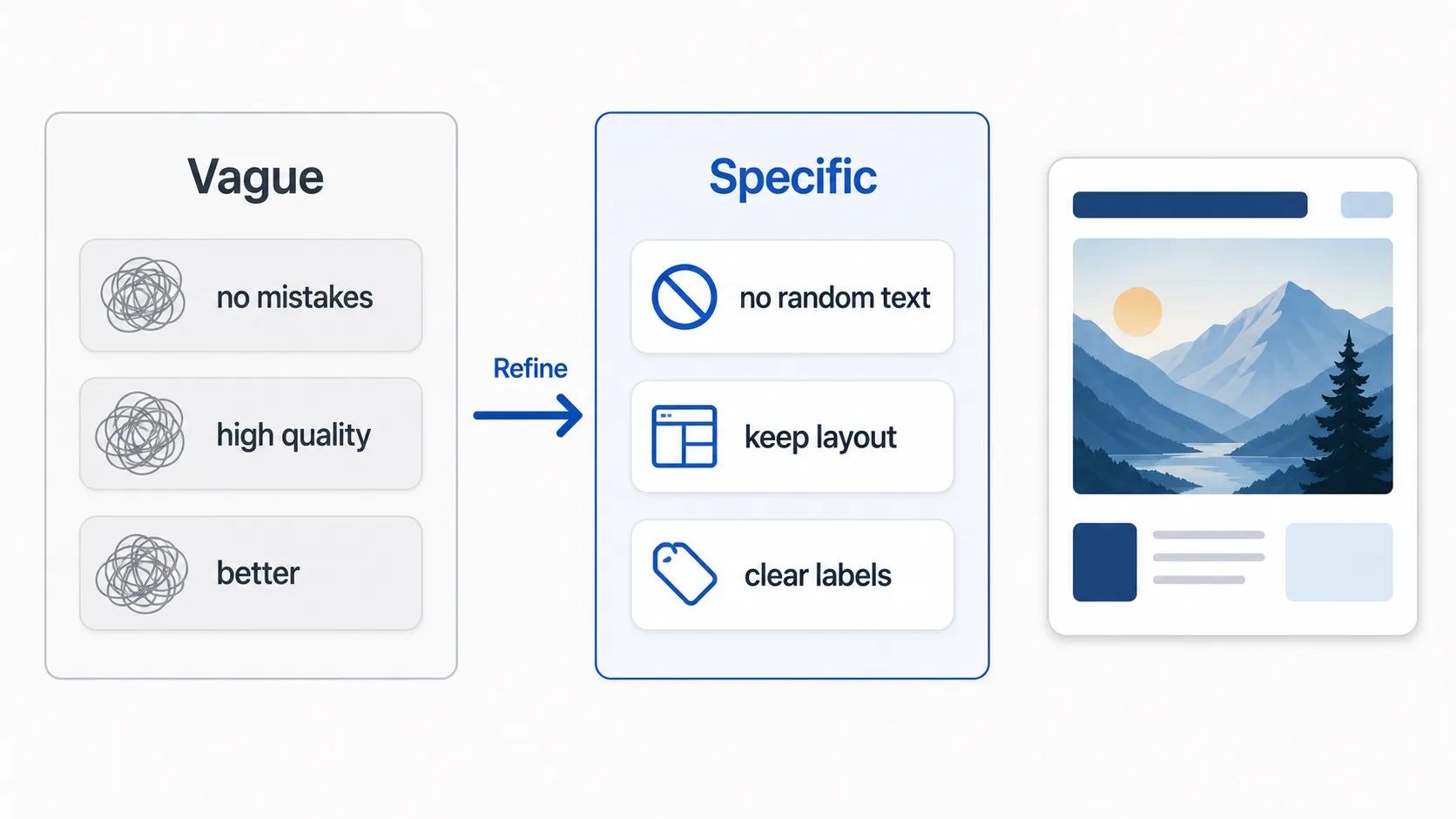
Use constraints as steering, not punishment
Negative instructions are useful when they are specific. They are much less useful when they become a long list of fear.
Good constraints name the failure mode:
- no unreadable filler text
- no oversized fake logos
- no collage-style clutter
- keep the face identity accurate
- avoid heavy typography
- do not change the room layout
- keep the product label readable
Bad constraints are vague:
- no bad quality
- no mistakes
- make it professional
- make it realistic
The model cannot act on "no mistakes." It can act on "do not change the window position" or "avoid random background text."
Add visual hierarchy when the image contains information
GPT Image 2 can handle text and structured visuals better than older image models, but you still need to make the information hierarchy explicit.
If you want a study sheet, recipe card, poster, or infographic, tell the model which information matters most. A useful pattern is:
Clear hierarchy: main visual first, explanation modules second, optional details third.
Then define the modules:
Include three sections:
1. A simple definition
2. A visual example
3. A short checklist
This works better than asking for "lots of useful information." The model needs to know what "useful" means in this image.
The math study sheet examples on X are a good reminder here. The reusable prompt did not only ask for a math concept. It asked for intuition, behavior in different contexts, callout boxes, arrows, labels, and a summary section. That is why the result looked like a learning asset rather than a generic math poster.
Give style direction with concrete references
Style words are not bad. They just need support.
"Cinematic" becomes useful when you add lens, light, framing, depth, and color. "Editorial infographic" becomes useful when you add modules, whitespace, typography, and hierarchy. "Product ad" becomes useful when you add surface, props, lighting, reflections, and camera angle.
Weak:
Cinematic F1 poster, high quality.
Better:
Create a cinematic Formula 1 hero poster in a 9:16 layout. Use a low-angle camera, strong rim lighting, a dark studio background, glossy floor reflections, and a controlled black-and-red palette. Put the driver in the foreground and the car slightly behind them.
The better prompt gives GPT Image 2 visual decisions it can execute.
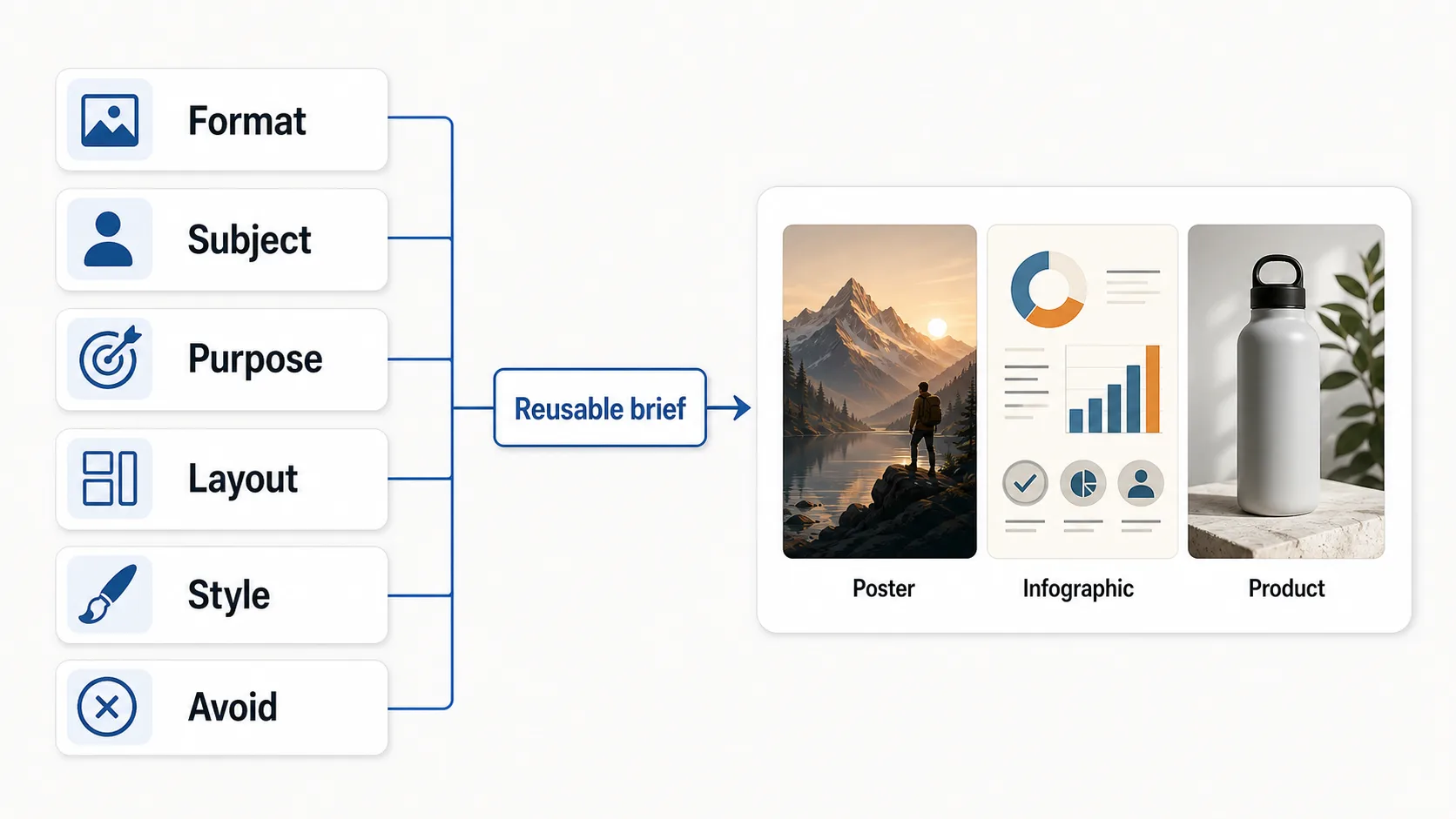
Keep reusable prompts modular
If you want to reuse a prompt, do not write it as one frozen paragraph. Turn the moving parts into variables.
For example:
Create a high-quality educational infographic about [TOPIC].
Audience: [AUDIENCE].
The image should explain [CORE IDEA] using [VISUAL STRUCTURE].
Include [MODULES].
Use [STYLE].
Avoid [FAILURE MODES].
This lets you test one structure across many subjects. If the structure works, you only change the topic, audience, and modules.
This is also why prompt galleries are useful. They do not just give you words to copy. They show working structures: poster prompts, infographic prompts, product prompts, edit prompts, and character prompts. Once you understand the structure, you can adapt it instead of starting from a blank page.
A practical GPT Image 2 prompt formula
Here is a compact formula you can use today:
Create a [format] for [use case].
Main subject: [subject] shown [action/state].
Purpose: the image should help the viewer [understand / choose / feel / notice / buy / remember].
Layout: [aspect ratio], [main visual placement], [supporting sections], [spacing].
Style: [medium], [visual references], [level of realism], [texture/materials].
Lighting and color: [lighting], [palette], [mood].
Text: [none / exact text / label rules].
Keep: [identity, composition, product shape, room layout, brand colors].
Avoid: [specific failure modes].
You can shorten it for simple images. You can expand it for images with text, reference images, or complex layout.
Example prompt
Here is a practical example for a blog header image:
Create a 16:9 editorial blog header image for an article about writing better GPT Image 2 prompts.

Show a clean desktop workspace with a prompt draft on a laptop, a generated image preview beside it, and small visual cards representing layout, lighting, subject, and constraints. The image should feel like a practical creative workflow, not a futuristic AI control room.

Use a modern editorial style with crisp details, warm neutral lighting, and subtle blue accents. Keep the composition spacious, with the laptop in the center and the visual cards arranged around it. No readable brand logos, no random UI text, no clutter.
Notice what it does not do. It does not say "amazing," "next-gen," or "ultra powerful." It gives the model decisions: format, subject, scene, style, composition, lighting, and constraints.
Common mistakes
The first mistake is asking for a topic instead of an image. "AI prompt guide" is a topic. "A 16:9 editorial header showing a prompt draft, generated image preview, and visual decision cards" is an image.
The second mistake is stuffing the prompt with adjectives. A long prompt can work, but length is not the goal. Specificity is.
The third mistake is forgetting the output format. If you need a YouTube thumbnail, say that. If you need a course cover, say that. If you need a mobile poster, specify the vertical ratio and typography rules.
The fourth mistake is not naming what should stay fixed. This is especially important for reference-image edits, product images, portraits, interiors, and brand visuals.
The fifth mistake is treating the first result as final. Good prompt writing is iterative. Change one variable at a time: layout, subject action, lighting, text policy, or constraints. If you change everything at once, you will not know what improved the result.
FAQ
How long should a GPT Image 2 prompt be?
For simple images, one to three clear sentences is often enough. For structured images such as infographics, posters, product ads, or reference-image edits, use a longer prompt with layout and constraints.
Should I use negative prompts?
Use them when you can name the actual failure mode. "No random text" is useful. "No bad output" is not. Keep the avoid list short and concrete.
Is it better to write prompts as paragraphs or lists?
Both work. Paragraphs feel natural for simple scenes. Lists work better when the image has layout, sections, labels, or strict constraints. For reusable prompts, variables and sections are easier to edit.
Can GPT Image 2 handle text in images?
Yes, it can follow precise instructions for text and details, but you should still keep text rules clear. Specify exact headlines, label style, hierarchy, and what text should not appear.
Use a prompt library when you want faster results
If you write image prompts every week, do not start from scratch each time. Build a small library of working prompt structures: blog header, product ad, comparison infographic, social poster, character poster, and reference-image edit.
That is exactly what gpt-image-prompt.com is built for. You can browse reusable GPT Image 2 prompt templates, study how strong prompts are structured, and adapt them for your own images instead of rewriting the same prompt from zero.
Start with one proven template, change the subject and constraints, then test. That is a much better workflow than trying to invent perfect prompt words in a blank box.
Sources and examples studied
- OpenAI, Creating images with ChatGPT
- OpenAI API docs, GPT Image 2 model
- Kai's reusable math visualization prompt on X: x.com/hqmank/status/2048587150544028084
- Jaypio's Black-Scholes visualization prompt on X: x.com/jaypio/status/2048756298309828941
- Anissa's cinematic character poster prompt on X: x.com/SimplyAnnisa/status/2051300004099236054
- Kashberg's reference-image doodle edit prompt on X: x.com/Kashberg_0/status/2051993667372818749
- Community discussion around prompt galleries and prompt-as-code on X: x.com/NFTCPS/status/2051177609447498036